

Back to article
3329
Mauvaise qualité sonore du produit
Si vous constatez une distorsion, des grésillements, de l’électricité statique, du bruit ou une mauvaise qualité sonore inattendue de votre produite
Poor sound quality from product | Bose QuietComfort Ultra Headphones (2nd Gen)
In the Bose App, toggle multi-point on and off
If you have a multi-point connection, the secondary device could interrupt the audio stream on the primary device causing crackling, distortion or even pauses in audio.
- In the Bose App, on the product main screen, tap Bluetooth Source.
- Toggle the Multi-point Connection on and off.
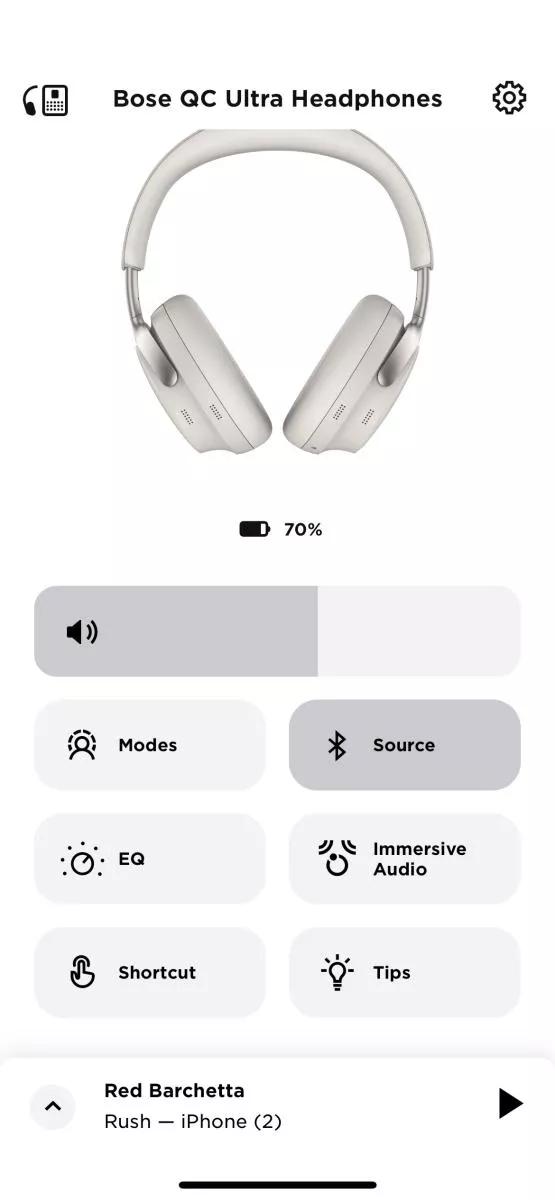
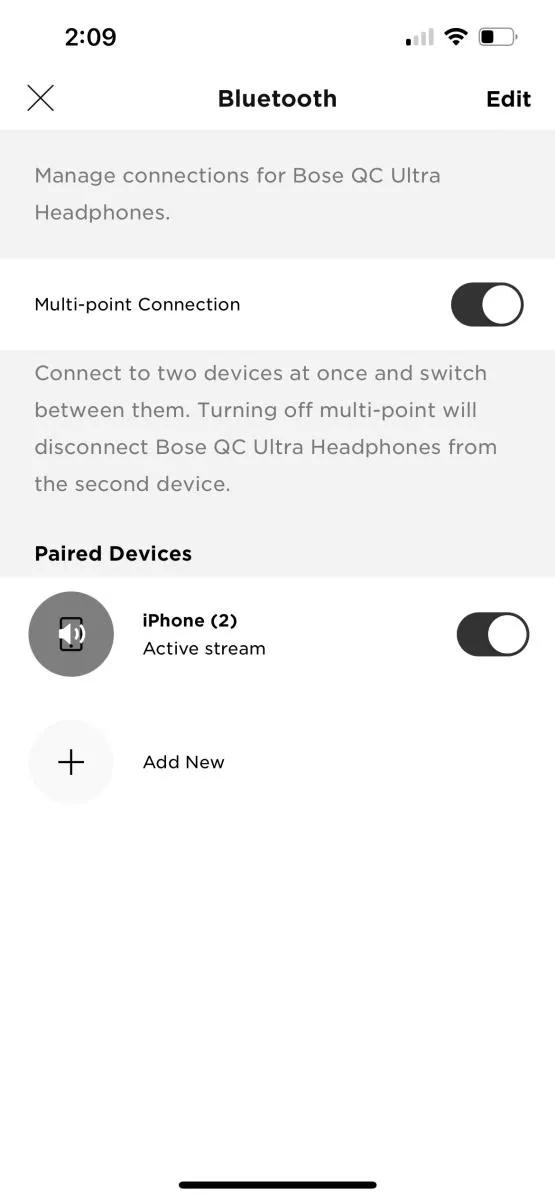
Determine if the problem is specifically related to bass performance.
If there is too little bass, see Too little bass or too much treble from product.
If there is too much bass, see Too much bass or too little treble from product.
Do you hear static or distorted audio while in noisy environments?
Situations like airplane takeoffs, concerts, emergency sirens, or construction zones can overwhelm the earbuds’ noise-cancelling microphones. Even in Quiet or Aware mode, this can lead to temporary audio distortion—similar to someone shouting into a microphone.
This distortion is normal and does not harm the product. It is a natural response to intense external noise. Try to reduce exposure to those sounds when possible—for example, by moving away from engines on a plane.
This distortion is normal and does not harm the product. It is a natural response to intense external noise. Try to reduce exposure to those sounds when possible—for example, by moving away from engines on a plane.
Reboot your headphones.
This reset will not erase your product settings.
- If the USB charging cable or audio cable is connected to your headphones, disconnect it.
- Connect a USB charging cable and charger to a power outlet. You can also connect the USB cable to a USB port on a computer that is powered on.
Note: Do not connect your headphones to the USB cable yet. - On your headphones, press and hold the Power/Bluetooth® button.
- While continuing to hold the button, connect the USB cable to the right earcup. The Power light on your headphones will quickly blink twice.
- Once connected, wait two seconds and then release the Power/Bluetooth button.
Tip: If your headphones don't respond after this, reset them a second time.
Try a different app.
If the issue only occurs with a particular app, it is likely related to the app or app settings.
Reboot the Bluetooth® device.
Electronics, such as cell phones, tablets or computers, might need to be reset on occasion to correct minor issues. This is typically done by shutting down the device, then powering it on again.
Check the EQ settings on your Bluetooth® device.
The EQ settings of your Bluetooth device can affect sound. On the device, try setting the EQ to "off" or "flat" and disabling any other sound playback adjustments (i.e. loudness, compression, reverb, etc.). These settings are commonly found in the device's audio settings or in the settings of the app being used to play audio.
If connected, bypass any adapters or extension cables.
If your product connects to the device using an extension cable or adapter, disconnect the extension cable or adapter to determine if the issue is related to it.
Check the condition of the headphone cable.
If the plug or any part of the cable is damaged, replace the headphone cable.
Try disabling the Multi-point connection in the app
If you find that notifications from your secondary device interrupt your listening experience on your primary device, you can turn off Multi-point.
In the Bose app, go to Settings>Bluetooth Connections and toggle Multi-point connection to 'off'. This will disconnect your secondary device.
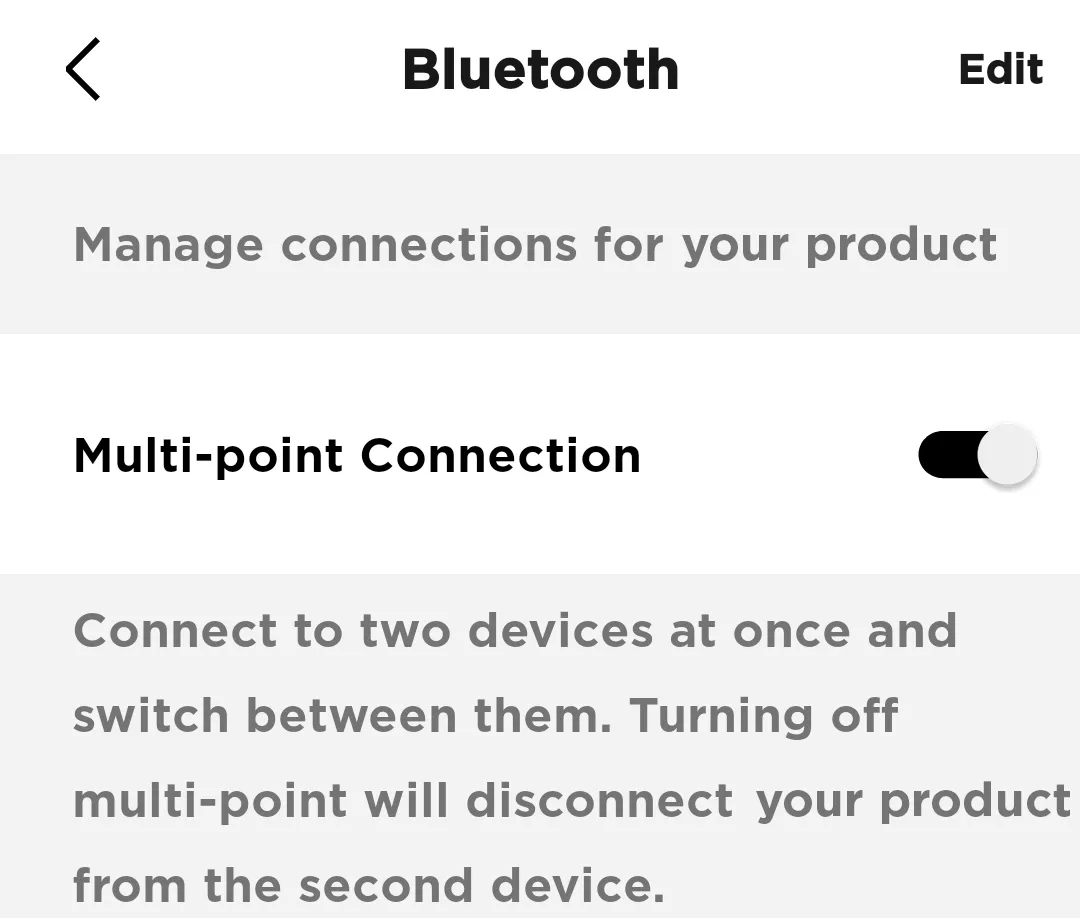
Note: You will only be able to connect to one device at a time. If you want to connect to two devices simultaneously, toggle Multi-point connection back to 'on'
In the Bose app, go to Settings>Bluetooth Connections and toggle Multi-point connection to 'off'. This will disconnect your secondary device.
Note: You will only be able to connect to one device at a time. If you want to connect to two devices simultaneously, toggle Multi-point connection back to 'on'
Avez-vous trouvé cet article utile ?
Nous vous remercions de votre participation.